Start with the timeline
Before running anything, pin down two times: when the problem was first noticed, and the last time everything is known to have worked. Every change between those two points is a suspect; everything outside them probably isn't. Write both down, and keep a note of everything you check.
If you suspect an attack rather than a faulty change, preserve the evidence first: isolate the machine rather than rebooting it, and take a snapshot or forensic scan before you start changing things. Our first-hour checklist covers that in more detail.
1. Reliability Monitor: the quick overview
Windows keeps a day-by-day record of application failures, Windows failures, and software and driver installs. It is the fastest way to see whether something was installed just before the problems started.
perfmon /relIts limit: it records only certain kinds of event. It won't show a changed configuration file, a new scheduled task or an edited registry setting.
2. Updates and installed software
Recent updates are a common cause of sudden problems. List installed updates, newest first:
Get-HotFix | Sort-Object InstalledOn -Descending | Select-Object -First 15Also check Settings > Windows Update > Update history, and the installed programs list sorted by install date, for software that arrived around the same time.
3. Services and drivers
A new or changed service or driver is a frequent cause of both crashes and compromises. Windows logs new services in the System log as event 7045, and changes to how a service starts as event 7040:
Get-WinEvent -FilterHashtable @{LogName='System'; Id=7045,7040} -MaxEvents 30 |
  Select-Object TimeCreated, Id, Message
To see what each service actually runs, and spot anything pointing somewhere unusual:
Get-CimInstance Win32_Service | Select-Object Name, StartMode, PathName | Sort-Object NameAnd for drivers:
driverquery /v4. Auto-starts and scheduled tasks
Programs set to start automatically are where both faulty software and attackers make themselves permanent. Check the common Run keys:
Get-ItemProperty 'HKLM:\Software\Microsoft\Windows\CurrentVersion\Run'
Get-ItemProperty 'HKCU:\Software\Microsoft\Windows\CurrentVersion\Run'
And scheduled tasks, looking for unfamiliar names or actions:
Get-ScheduledTask | Where-Object State -ne 'Disabled' |
  Select-Object TaskPath, TaskName, @{n='Action';e={$_.Actions.Execute}}
There are many more auto-start locations than these: Winlogon entries, Image File Execution Options, startup folders and services among them. These two are the most common, not the complete list.
5. Recently changed files
To list files modified in the last two days in a folder:
Get-ChildItem C:\Windows\System32 -File -ErrorAction SilentlyContinue |
  Where-Object LastWriteTime -gt (Get-Date).AddDays(-2) |
  Sort-Object LastWriteTime -Descending
This is useful, but it has three big limits: it is slow across a whole disk, it only shows files that still exist (not deleted ones), and it trusts the timestamps Windows reports, which an attacker can backdate. A file whose timestamps were faked won't appear at all.
6. Accounts, logons and cleared logs
If the change might not be accidental, check the Security log for accounts created (event 4720), accounts added to administrator groups (event 4732), remote desktop logons (event 4624 with logon type 10) and, most tellingly, the Security log being cleared (event 1102):
Get-WinEvent -FilterHashtable @{LogName='Security'; Id=4720,4732,1102} -MaxEvents 30 |
  Select-Object TimeCreated, Id, Message
If the logs were cleared or auditing was switched off, these checks come back empty, and an empty result looks just like "nothing happened".
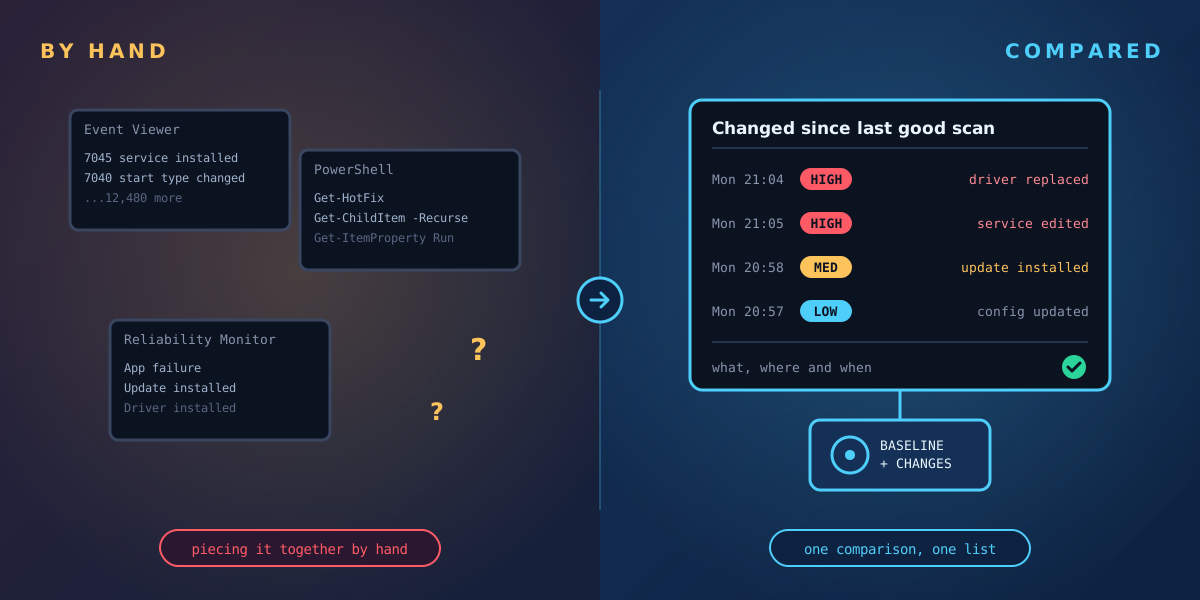
Why the manual route only gets you so far
- There is no "before". Every check above shows the current state or a log of certain events. None of them compares the machine with how it looked when it last worked.
- It is spread across many tools. Updates, services, drivers, auto-starts, files and the registry each need a different command, and the registry has no easy "what changed" view at all.
- It depends on logs and timestamps. Both can be missing, cleared or faked.
- It takes time. During an outage, an hour spent gathering facts is an hour of downtime.
The fix is to have a record of the machine from before the problem, and compare against it.
Where Tracknosis fits
Tracknosis is a lightweight agent for Windows that does that comparison for you. It reads every file and registry record directly from the disk, compares each scan with the last, and gives you one list of what changed, when, and how risky it is:
- Files, drivers, services, scheduled tasks, auto-starts and registry values, in one view.
- Each change rated High, Medium or Low with a plain-language reason, so the likely cause stands out from routine updates.
- Faked timestamps, cleared logs and switched-off auditing flagged, rather than silently missing.
- Deleted files listed, and often recoverable to a different disk.
- Any two scans can be compared, so "what changed since it last worked?" has a direct answer.
Find what changed in minutes, not hours
Request a guided trial: we install Tracknosis with you on one of your Windows machines and walk you through your first results.
Request a guided trial Get the first-hour checklist